Posts

hello

 dhghhfgf click me

MAZE GAME PROJECT

CODE: from turtle import * from random import random from freegames import line def draw():     "draw maze"     color('black')     width(5) for x in range(-200,200,40):     for y in range(-200,200,40):         if random()>0.5:             line(x,y,x+40,y+40)         else:             line(x,y+40,x+40,y)     update() def tap(x,y):     "draw line and dot for scrren tap"     if abs(x) > 198 or abs(y) > 198:         up()     else:         down()     width(2)     color('red')     goto(x,y)     dot(4) setup(420,420,370,0) hideturtle() tracer(false) draw() onscreenclick(tap) done() OUTPUT:

SCREENSHOT USING PYTHON

Image
Code: import time import pyautogui import pyscreenshot as ImageGrab x=int(input('How many screenshot you want ? : ')) t=int(input('How much gap each should have in sec : ')) for i in range(1,x+1):     print('Taking Screenshot in ',t,' Seconds...')     time.sleep(t)     im=ImageGrab.grab()     im.show()     pyautogui.keyDown('alt')     time.sleep(.2)     pyautogui.press('tab')     time.sleep(.2)     pyautogui.keyUp('alt') Output:     

GET INSTAGRAM USER BIO DETAILS USING PYTHON

Image
 PYTHON CODE: import instaloader l = instaloader.Instaloader() profile = instaloader.Profile.from_username(l.context, 'learn22code') print(profile.biography) OUTPUT:

DOWNLOAD YOUTUBE VIDEO USING PYTHON

 PYTHON CODE: import pytube url = "https://www.youtube.com/watch?v=F4Zu5ZZAG7I" video = pytube.YouTube(url) youtube = video.streams.first() youtube.download(r'D:\Gaurav') OUTPUT:

SEARCH BAR

PYTHON CODE: from tkinter import * import webbrowser win = Tk() win.title("search bar") def search():     url = entry.get()     webbrowser.open(url) label1 = Label(win,text="enter url here: ",font=("arial",10,"bold")) label1.grid(row=0,column=0) entry = Entry(win, width=30) entry.grid(row=0, column=1) button = Button(win,text="search",command=search) button.grid(row=1, column=0, columnspan=2, pady=10) win.mainloop() OUTPUT:

CLOCK USING PYTHON

Image
 PYTHON CODE: from tkinter import * from tkinter.ttk import * from time import strftime root = Tk() root.title("clock") def time():     string = strftime('%H:%M:%S %p')     label.config(text=string)     label.after(1000,time) label = Label(root,font=("ds-digital",80),background = "black",foreground = "cyan") label.pack(anchor='center') time() mainloop() OUTPUT:

WIKIPEDIA

Image
 PYTHON CODE: import wikipedia def searcher(question):     answer = wikipedia.summary(question).split(".")     for line in answer:         print(line) if __name__ == "__main__":     question = input("search wikipedia for : ")     searcher(question) OUTPUT:

URL- SHORTEN

Image
 PYTHON CODE: import pyshorteners def shorten(url):     link = pyshorteners.Shortener()     return link.tinyurl.short(url) if __name__ == "__main__":     url = input("enter link to shorten: ")     print(f"\n{shorten(url)}") OUTPUT:

FONT ART USING PYTHON

Image
 PYTHON CODE: import os from pyfiglet import Figlet def print_cool(text):     cool_text = Figlet(font="slant")     os.system("cls")     os.system('mode con:cols=75 lines=30')     return  str(cool_text.renderText(text)) if __name__=="__main__":     print(print_cool("welcome to learn2code")) OUTPUT:

OPENING WEBSITE USING PYTHON

CODE: import webbrowser as wb import pyttsx3 import os  engine = pyttsx3.init()  voices = engine.getProperty('voices') engine.setProperty('voice', voices[1].id)  engine.runAndWait()  print("")  def webbrowser():  pyttsx3.speak('Hello Welcome to our program') pyttsx3.speak('PRESS 1 FOR VOOT') pyttsx3.speak('PRESS 2 FOR HOTSTAR') pyttsx3.speak('PRESS 3 FOR YOUTUBE') pyttsx3.speak('PRESS 4 FOR PRIME VIDEO') pyttsx3.speak('PRESS 5 FOR SONY LIV')'''     print('''Press 1 for Voot Press 2 for Hotstar Press 3 for Youtube Press 4 for Amazon Prime Press 5 for sony liv''')     pyttsx3.speak('ENTER YOUR CHOICE')     x=int(input('Enter Your choice : '))     if x==2:         pyttsx3.speak('OPENING HOTSTAR')         wb.open("https://www.hotstar.com/in")     elif x==1:         pyttsx3.speak('OPENING VOOT')         wb.open("https://www.voot.com/...

ROTATE-SCREEN USING PYTHON

 PYTHON CODE: import rotatescreen rs=rotatescreen.get_primary_display() rs.set_landscape() OUTPUT:

KBC USING C++ LANGUAGE

 CPP CODE: #include<iostream.h> #include<stdlib.h> #include<conio.h> #include<stdio.h> #include<graphics.h> #include<process.h> #include<dos.h> #include<stdlib.h> #include<string.h> main() { char ans; char a[25],b[23]; abc: clrscr(); textcolor(56); textbackground(67); cout<<" Enter your Password : "; gets(a); if(strcmp(a,"learn2code")==0) { clrscr(); cout<<"\n\n\n\n\n\n\n\n\n\n\n\n\n\n\n\n"; cout<<"Loading please wait..."<<endl; for(int x=0; x<80; x++) { cout<<char(221); delay(90); } cout<<"\nCompleted"; delay(2000); clrscr(); textcolor(104); textbackground(90); cout<<"\n\n\n\n\n\n\n\t\t\t\t WELCOME TO KBC"; cout<<"\n\t\t\t\t (learn 2 code) "; delay(2000); clrscr(); textcolor(26); textbackground(78); cout<<"\n Q1. Python was developed by"; cout<<"\n A. Guido van Rossum "; cout<...

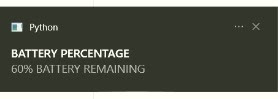
DISPLAYING BATTERY PERCENTAGE OF LAPTOP USING PYTHON

Image
CODE:  import psutil from plyer import notification import time battery = psutil.sensors_battery() while(True):     percent = battery.percent     notification.notify(title="BATTERY PERCENTAGE",message=str(percent)+"% BATTERY REMAINING",timeout=100)     time.sleep(60*60) OUTPUT:     

HOTEL MANAGEMENT USING PYTHON

Image
PYTHON CODE: import os from subprocess import call import sys try:     from Tkinter import * except ImportError:     from tkinter import * try:     import ttk     py3 = False except ImportError:     import tkinter.ttk as ttk     py3 = True def click_checkinn():     call(["python", "checkin_gui_and_program.py"]) def click_list():     call(["python", "listgui.py"]) def click_checkout():     call(["python", "checkoutgui.py"]) def click_getinfo():     call(["python","getinfoui.py"]) class HOTEL_MANAGEMENT:     def __init__(self):         root = Tk()         '''This class configures and populates the toplevel window.            top is the toplevel containing window.'''         _bgcolor = '#d9d9d9'  # X11 color: 'gray85'         _fgcolor = '#000000'  # X11 color: 'bl...

Followers

Contact form

Name

Email *

Message *